WordPress System
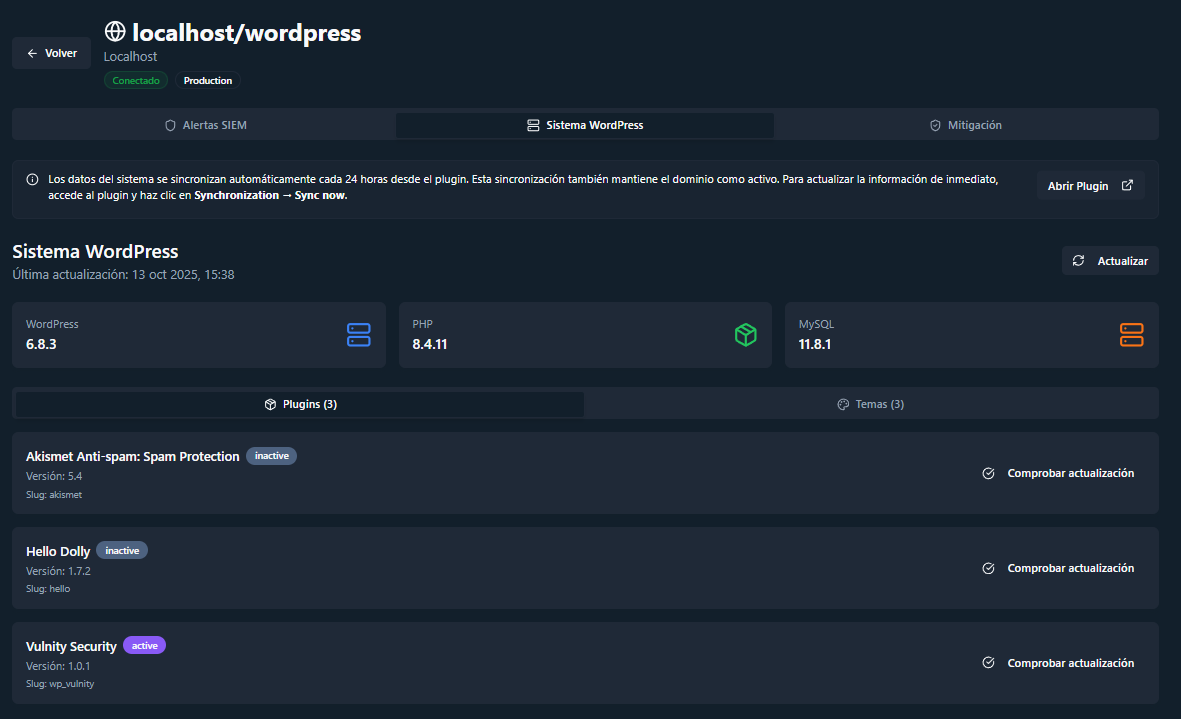
The System tab of the domain detail view centralizes version information for the WordPress core, PHP, MySQL, and every installed plugin and theme, giving you a unified view of the site’s state without opening wp-admin.
System overview
Section titled “System overview”The top cards show the WordPress, PHP, and MySQL versions reported by the plugin, together with the date of the last inventory update. Below them, a stats strip counts the plugins and themes updated on the site over the selected period (7, 14, 30, or 90 days).
If the plugin reports site health issues in its heartbeat (for example, WP-Cron not running), a Site health warnings card appears at the top of the tab with a View guide link for each warning.
Plugins and themes
Section titled “Plugins and themes”The Plugins (N) and Themes (N) lists show every installed component with its name, active/inactive status, version, and slug. Each component can carry a state badge:
- Outdated — a newer version exists; the target version is shown next to the current one.
- Updated — the component was updated during this session.
- Excluded — the component is excluded from update handling.
Check for outdated components
Section titled “Check for outdated components”-
Click Check for updates to compare every plugin and theme against its latest available version, or use the Check button on a single component.
-
Review the result: outdated components are marked with an amber Outdated badge, and a banner summarizes how many components need attention.
-
Update the affected components from WordPress (
wp-admin→ Updates, or the plugin/theme screens).
How the inventory stays up to date
Section titled “How the inventory stays up to date”The inventory synchronizes automatically after any plugin, theme, or core change on the site, with a daily reconciliation against the panel as a fallback. To force an immediate sync, open the plugin on the site and use Synchronization → Sync Now.
Event history
Section titled “Event history”The Event History section lists the site’s informational events — plugin and theme changes, updates, and other activity reported by the plugin that does not require triage. You can search events, open each one to see its full details, mark them as read, or delete them.
Next steps
Section titled “Next steps”- SIEM Alerts — manage the security alerts of this domain.
- Plugin synchronization — how the plugin syncs the inventory with the panel.
- Mitigation overview — automatic and manual IP blocking for this domain.