
Domain Management
Domain Management is where you link your WordPress sites with the SIEM and check the state of every connected domain: connection status, heartbeat, plugin version, and direct access to each site’s wp-admin.
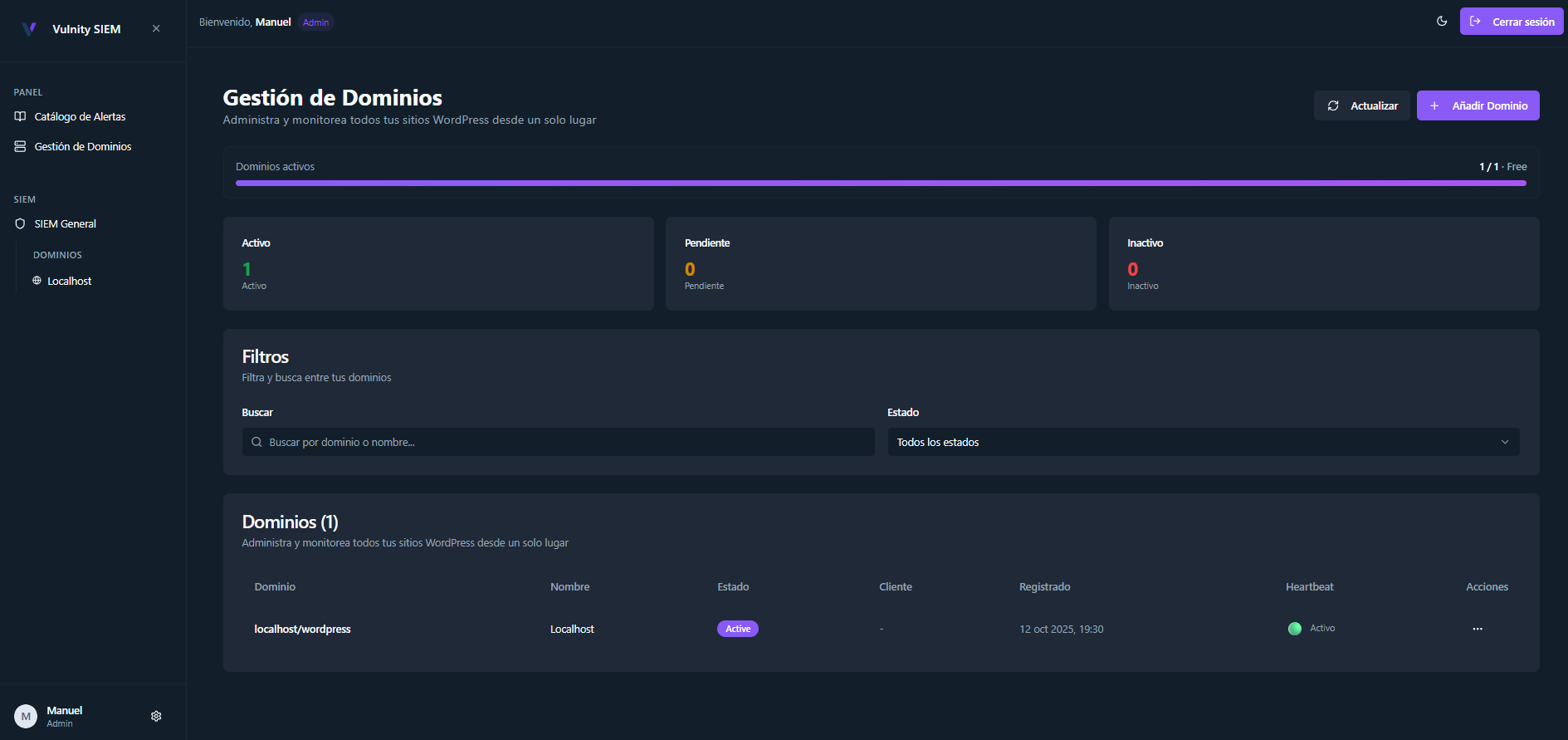
Domain states and quota
Section titled “Domain states and quota”Under the page title, a summary bar shows how many of your domains are active, pending, and inactive:
- Active — the site is paired and its heartbeat (the automatic signal the plugin sends approximately every 6 hours) is being received correctly.
- Pending — the domain exists in the panel but the plugin has not completed pairing yet.
- Inactive — the connection was lost or ended: no heartbeat within the expected window, plugin deactivated in WordPress, manual disconnection, or an invalid pairing.
Your plan includes a maximum number of domains. When your active and pending domains reach that limit, the Add domain button shows a notice instead of the wizard, with the option to review the available plans.
Cards view and list view
Section titled “Cards view and list view”A toggle above the listing switches between cards and list. In both views you can search by domain or name, and filter by status and by plugin version.
Cards view
Section titled “Cards view”Each card shows a preview thumbnail of the site (see Domain preview thumbnails), the domain with its favicon, the status badge, and the current heartbeat state. Clicking the thumbnail or the domain name opens that site’s individual SIEM.
If the site runs plugin version 1.4.0 or newer, the card also includes the “Open wp-admin” button for delegated wp-admin access. On older versions, the card shows “Update the plugin for direct access” instead.
List view
Section titled “List view”A table with one row per domain: domain (and its tags), name, status, plugin version, client, creation date, last heartbeat, and heartbeat state. The actions menu of each row lets you:
- View Keys — see and copy the domain’s Site ID and Pairing Code.
- View SIEM — open the site’s individual SIEM.
- Reconnect — available when the domain is pending, inactive, or its heartbeat is failing. See Reconnect domains.
- Delete — remove the domain and its SIEM configuration.
Pending plugin updates
Section titled “Pending plugin updates”When a new version of the Vulnity Security plugin is published, the panel shows a notice with how many of your sites still run an older version, plus a button to filter the listing to only those sites. In the list view, outdated sites also show an update available badge next to their plugin version.
Reconnecting a domain
Section titled “Reconnecting a domain”The Reconnect action first tries to reactivate the plugin remotely, without touching the WordPress admin. If the plugin no longer holds valid credentials (for example after an uninstall and reinstall), the panel generates a fresh Pairing Code and guides you through manual re-pairing.
Next steps
Section titled “Next steps”- Add domains — connect one site or many at once.
- Reconnect domains — recover a domain that lost its connection.
- Delegated wp-admin access — open a site’s
wp-adminfrom the panel. - Domain preview thumbnails — how the card previews are generated.