
Security settings
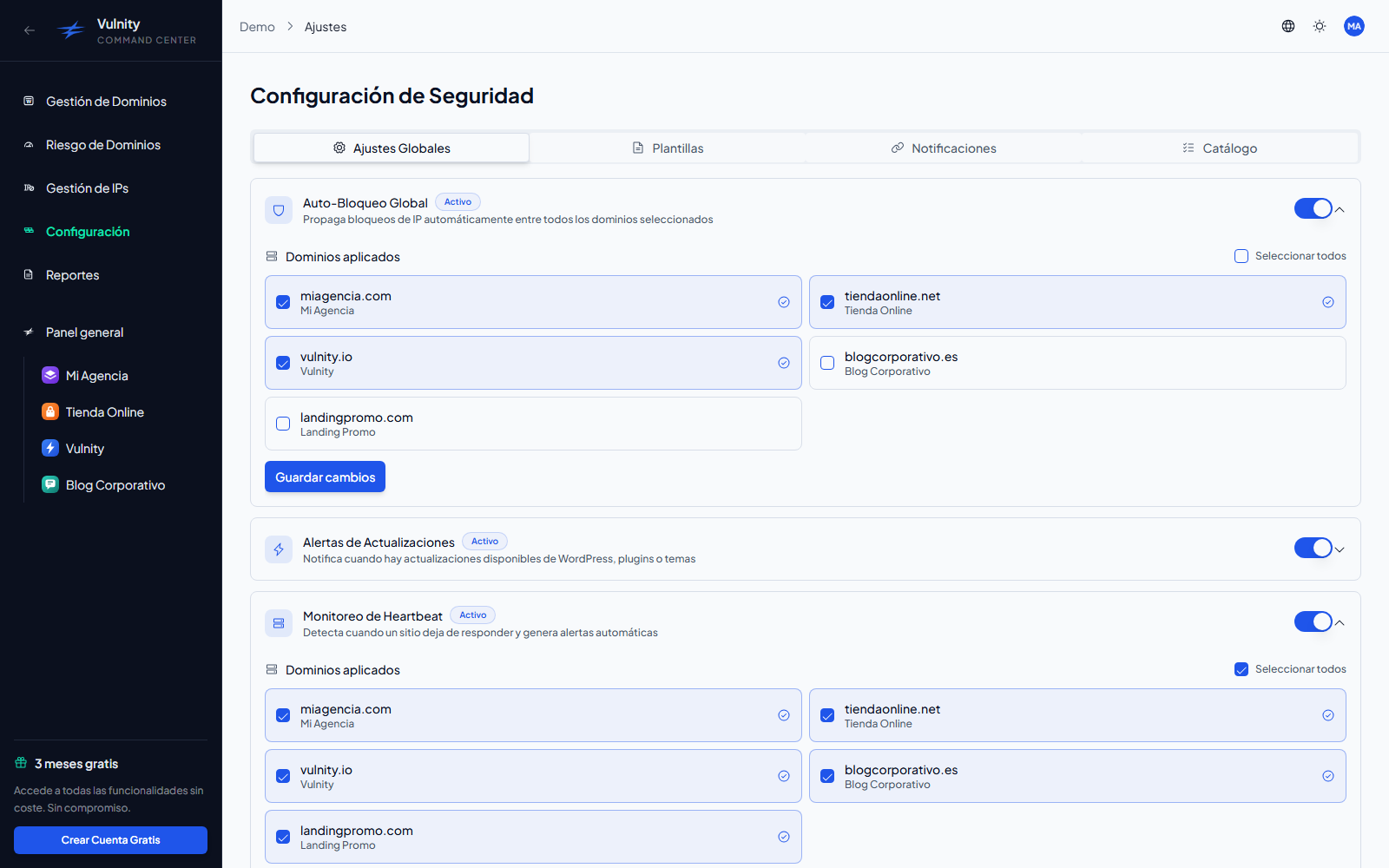
The Configuration page of the panel centralizes the security behavior that applies to your whole organization. It is organized in three tabs: Global Settings, Templates, and Notifications.
Global Settings tab
Section titled “Global Settings tab”Organization-wide switches that change how the SIEM reacts across all your connected sites. Each setting expands into its own panel with additional options.
Disconnection alerts
Section titled “Disconnection alerts”Vulnity periodically checks your active sites. If a site goes past the configured threshold without sending a heartbeat, it is marked as disconnected, a critical alert is created, and an email is sent to the configured recipients.
Available options:
- Notify after: 12, 24, 26, or 48 hours without a heartbeat.
- Sending account: the SMTP account used to deliver the email.
- Recipients: one or more email addresses, added individually.
Advanced SIEM Configurations
Section titled “Advanced SIEM Configurations”Transforms the alert view from a simplified chronological log into a full incident-management workflow:
- Status tabs — alerts are organized into three views: Unresolved, In Progress, and Resolved.
- Per-alert status change — each alert includes a selector to move it between states.
- Bulk actions — select multiple alerts and change their state in one operation (resolve, acknowledge, or reopen).
- Resolution notes — add comments when resolving an alert to document the action taken.
- Resolution KPIs — additional metrics such as resolution rate and average response time.
Auto-Block Propagation
Section titled “Auto-Block Propagation”When auto-mitigation blocks an IP on one of your selected sites, the same IP is automatically blocked on all the other selected sites. Sites that are not selected are not affected.
- The setting includes a site selector; you need at least 2 sites selected for propagation to have any effect.
- Select all keeps the setting applied dynamically to every site of the organization, including domains you add later.
Auto Resolutions
Section titled “Auto Resolutions”When auto-mitigation blocks an IP (for example, after several consecutive suspicious-query alerts), all the alerts that caused that block are automatically grouped and moved to the resolved state. This keeps the panel focused on the threats that still need attention.
You choose per site whether auto-resolution applies. This panel also contains the alert grouping options:
- Group similar alerts — repeated alerts with the same domain, type, IP, and path are grouped automatically to reduce noise.
- Grouping window — 15 minutes, 1 hour (recommended), or 24 hours.
- Group emails and notifications — avoids sending repeated notifications for equivalent events inside the window.
Templates tab
Section titled “Templates tab”Manages your domain templates: reusable presets of mitigation rules, hardening options, and IP lists that are applied automatically when you link a new domain. The tab lists every template with its mitigation and hardening presets, whether it syncs IP lists, and which one is the default.
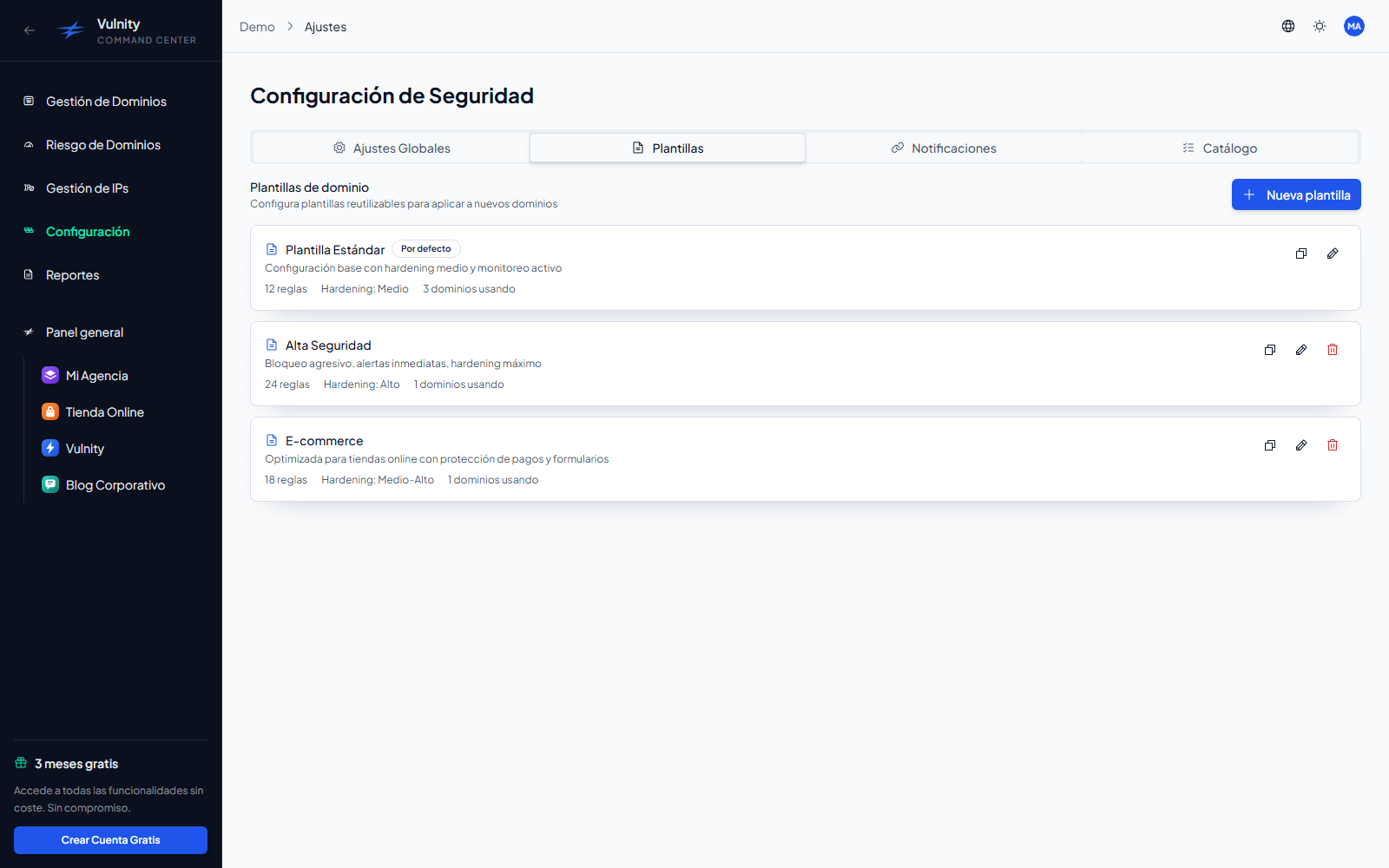
The full workflow — creating, editing, and applying templates — is documented in Domain templates.
Notifications tab
Section titled “Notifications tab”Email notification rules let you receive alerts by email as they happen, using your own SMTP accounts.
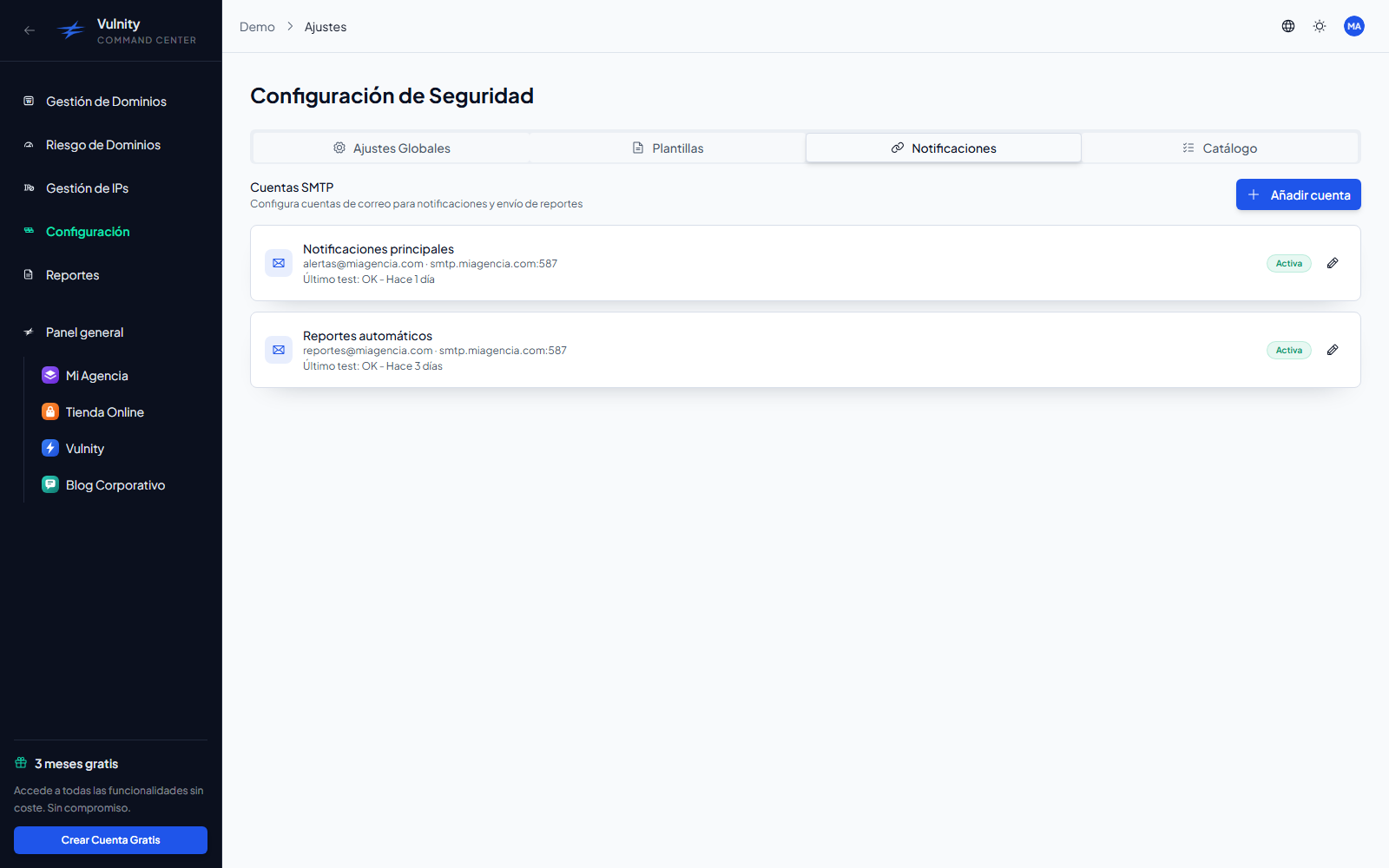
Before creating rules you need at least one SMTP account configured (account settings → Email, administrators only). Each rule defines:
- Rule name and an active toggle.
- Domains to monitor — leave empty to cover all domains.
- Severities — leave empty to match all severities.
- SMTP account used for delivery, and one or more recipients.
- Optional custom email subject and body, with a test-send option.
-
Open Configuration → Notifications and click New rule.
-
Give the rule a name and choose the domains and severities it should match. Empty selections match everything.
-
Select the SMTP sending account and add the recipient addresses.
-
Optionally customize the email subject and body, and send a test email to verify delivery.
-
Save the rule. You can toggle, edit, or delete it later from the rule list.
Next steps
Section titled “Next steps”- Domain templates — create presets applied when linking new domains.
- User management — roles that control who can edit these settings.
- Alerts — the alert views affected by the advanced mode and grouping.
- IP management — review the IPs blocked by auto-mitigation.