
Automations
Automations let the panel generate and email recurring white-label reports on a schedule, and send real-time notification emails when new alerts match your rules.
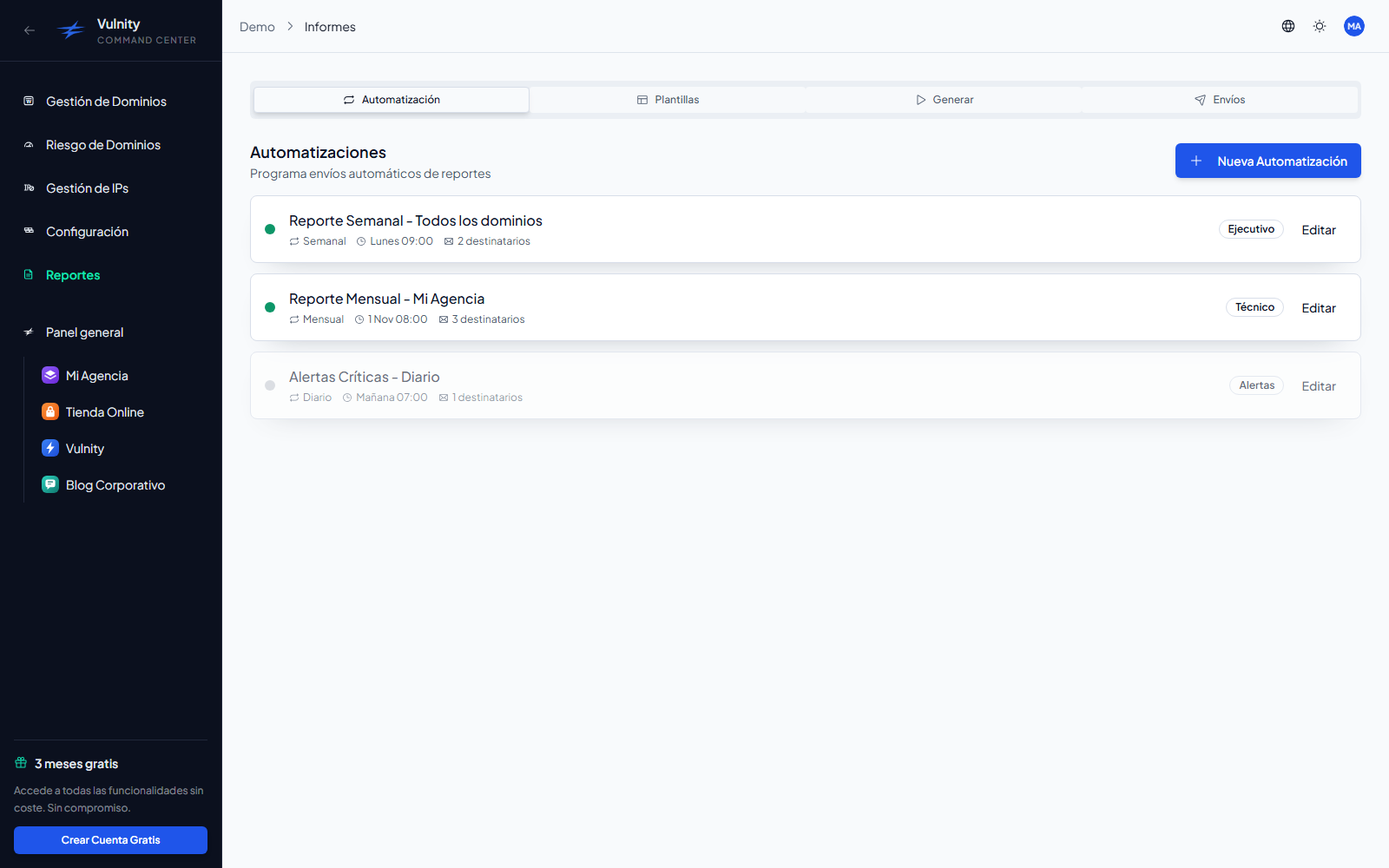
Create an automation
Section titled “Create an automation”-
Open Reports, select the Automation tab, and click New automation.
-
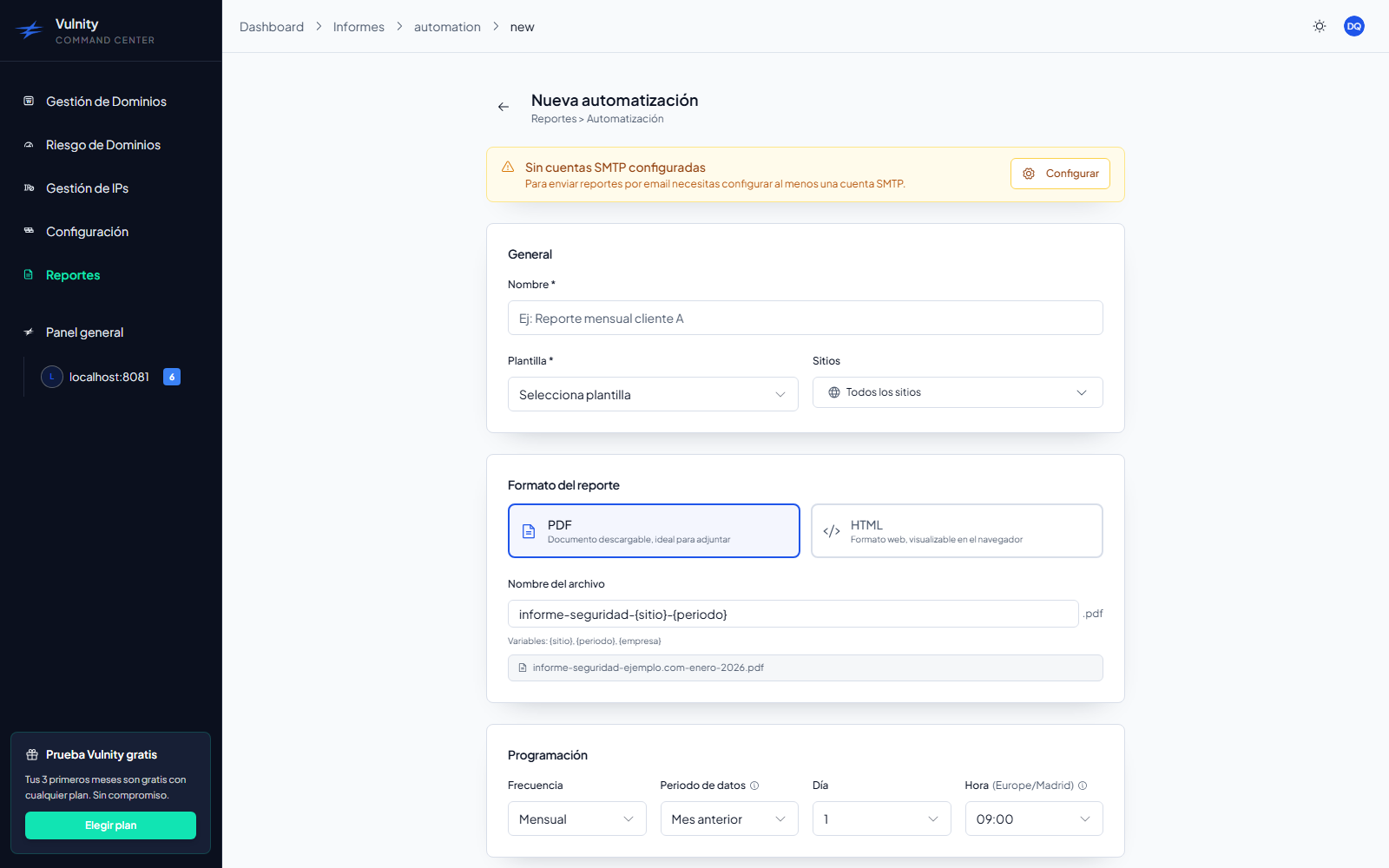
Fill in the general settings: a name for the automation, the report template to use, and the domains to include (one, several, or all).
-
Choose the report format — PDF or HTML — and the file name, which supports the variables
{sitio},{periodo}, and{empresa}. A live preview shows the resolved file name. -
Configure the schedule:
- Frequency: weekly, monthly, quarterly, or annual.
- Data period: the date range the report covers — last 7, 15, or 30 days, previous week, previous month, or previous quarter.
- Execution day (1–28) and hour. Reports are sent on the hour, in the Europe/Madrid timezone.
-
Configure the email delivery: the sending email account, one or more recipients (the panel suggests the contact emails of the selected domains), and the subject and body, which support the same
{sitio},{periodo}, and{empresa}variables. -
Optionally use Preview to see the resulting email, and Test send to send a real test report to an address of your choice.
-
Save with Create (or Update when editing).
Bulk creation
Section titled “Bulk creation”To automate reports for many domains at once, use bulk creation:
-
In the Automation tab, click Bulk create.
-
Step 1 — shared settings: choose the template and SMTP account (both required), the schedule (weekly, monthly, or quarterly; day; hour; data period), the report format and file name, and the shared email subject and body. Variables are resolved individually per domain.
-
Step 2 — domain selection: pick the domains from a searchable table. Each row has an editable recipient field, prefilled with the domain’s contact email when available.
-
Click Create. One automation is created per selected domain, named after it, with a progress bar during creation.
Manage your automations
Section titled “Manage your automations”Each automation in the list shows a card with:
- An on/off switch to pause or resume it (paused automations show a Paused badge and no next run).
- Badges with its frequency, execution day and time, and template.
- Its domains, recipients, last send (with a status icon: sent, partial, or failed), and next run.
- A menu with Edit, Send now (runs the automation immediately), and Delete.
Deliveries log
Section titled “Deliveries log”The Deliveries tab tracks every scheduled delivery, with two views:
- By domain: one card per automated domain, with its latest send status (sent, partial, failed, or pending), its automations, and the next scheduled run. You can search and filter by status or frequency.
- Send history: a chronological log of all deliveries, filterable by status, domain, date range, and text, from which you can download each sent report again.
Notification rules
Section titled “Notification rules”Notification rules email you in real time when a new alert matches their conditions. They are managed in the panel’s security settings, under the Notifications tab.
-
Open the security settings, select the Notifications tab, and click New rule.
-
Give the rule a name and choose the domains to monitor (leave empty to cover all domains).
-
Set the conditions: the alert severities that trigger the rule — Critical, High, Medium, Low, Info. Leaving it empty matches all severities.
-
Configure the email: the sending SMTP account, the recipients, and the subject and body. These support the variables
{dominio},{severidad},{tipo},{descripcion},{ip},{usuario},{pais},{ruta},{remediacion},{intentos},{wordpress}, and{fecha}. -
Optionally preview the email or send a test to your own address, then save the rule.
Each rule card in the list has a switch to enable or disable it, plus edit and delete actions, and shows its severities, domains, delivery account, and recipients.
Next steps
Section titled “Next steps”- Reports — templates and on-demand report generation.
- Alerts — the alerts your reports and notification rules are built on.
- General Overview — SIEM-wide metrics and trends.